Updating Key Contact and Billing Contact
Accessing Your Membership Dashboard
To manage your membership, you’ll need to access your NZGBC membership dashboard.
-
Log into your account on the NZGBC website.
-
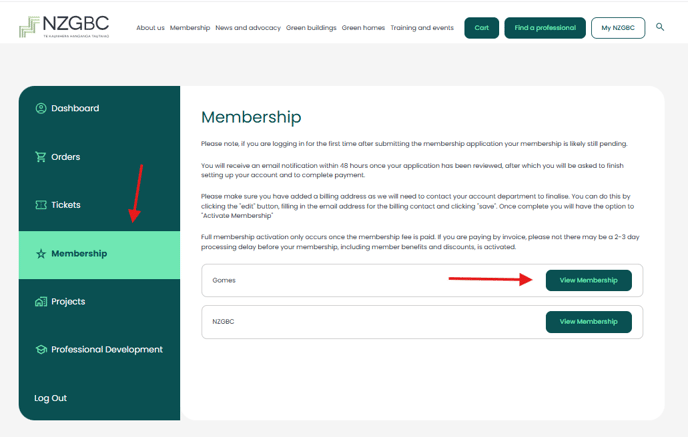
Click on the ‘Membership’ dashboard tab to enter your membership area.
-
Select the option "View Membership"
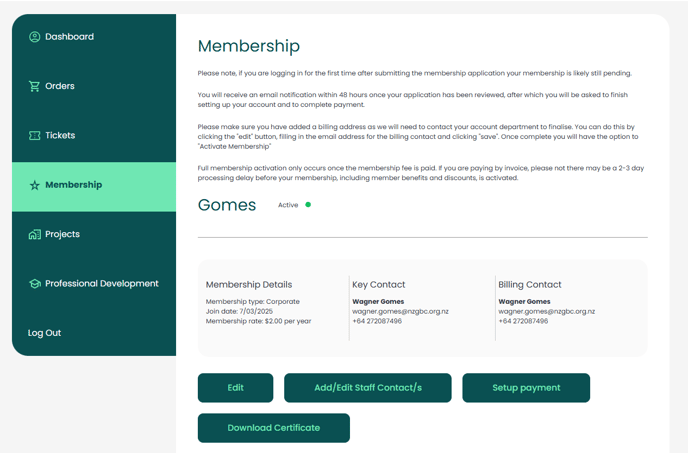
When selecting your membership, you will see your membership details along with the edit options.
Updating Key Contact and Billing Contact
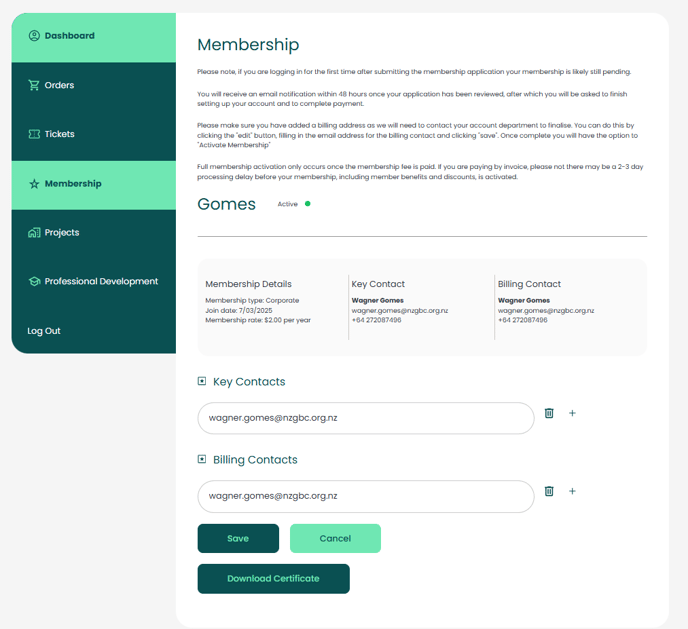
Keep your membership information up to date by editing the key and billing contacts.
-
Edit Key Contact
-
In the ‘Key Contact’ section, click ‘Edit’ next to the current contact information.
-
Update the necessary details and save the changes.
-
-
Edit Billing Contact
-
Similarly, update the ‘Billing Contact’ in the corresponding section by selecting ‘Edit’, making changes, and saving them.
-
Managing Your Staff List
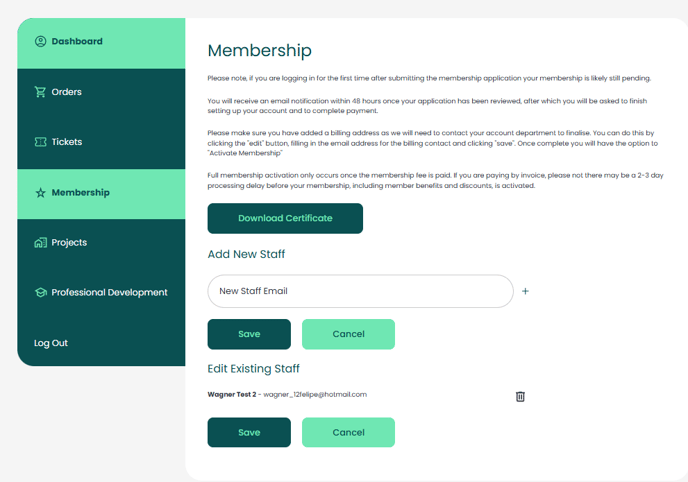
Your membership gives access to staff benefits for all members listed in your account. You can manage your staff list directly from your dashboard.
-
View Current Staff List
-
Go to the ‘Staff List’ section.
-
All individuals listed under your membership will be shown
-
- Add or Edit Staff Contacts
- To add a new staff member, enter the e-mail ID and select "Save"
-
Remove Staff Members: To remove a staff member from the list, click the ‘Remove’ icon next to their name.
Setup membership payment
After logging into your dashboard, you can manage your membership payments. This option is available only if you are a new member or your membership is due for renewal.
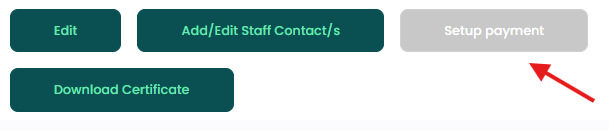
To complete payment please add a billing contact by clicking the "edit" button below and adding a contact under the "billing contacts" section. If the billing contact is not selected, the "Setup Payment" option will appear as unavailable.
-
Generate Invoice
-
Select the "View membership" on your dashboard.
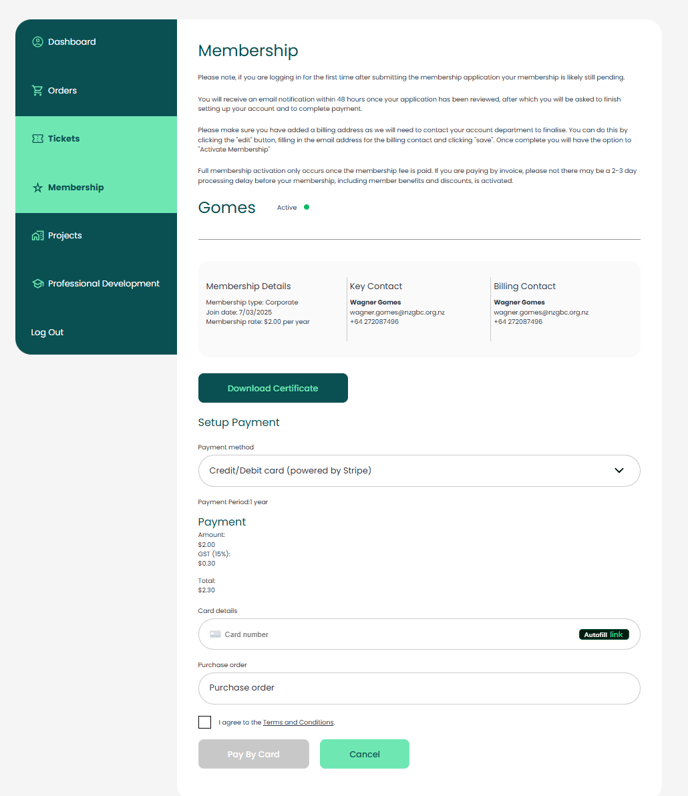
- Click on "Setup payment"
-
-
- In the "Payment method" dropdown you can select to either pay via Credit Card or by Invoice. If the option is unavailable that means you need to select a billing contact first
-
If you select Credit Card, enter your details securely and proceed with payment.
-
If you select Invoice, the system will generate an invoice that you can pay through your preferred payment method.
Downloading Your Certificate
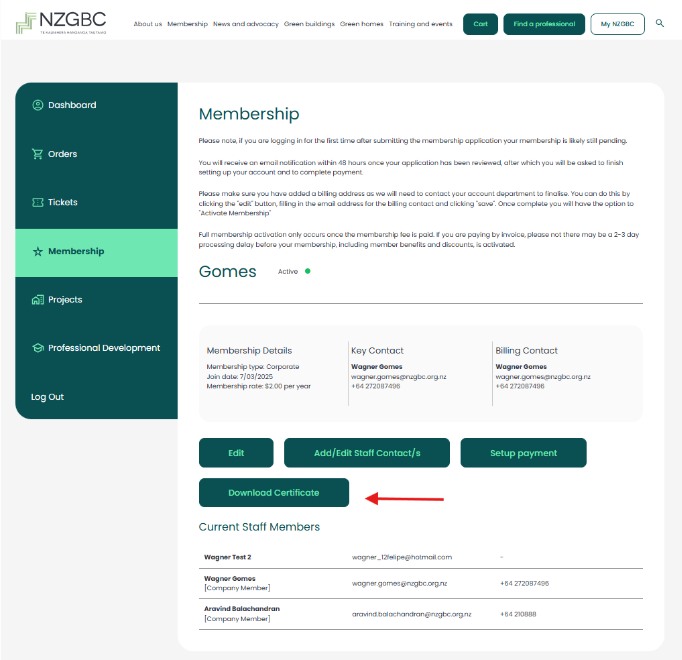
As a member, you can download your NZGBC Membership Certificate directly from your dashboard.
-
Navigate to the ‘Certificate’ section.
-
Click ‘Download’ to save your certificate in PDF format.