
Green Star EOI link
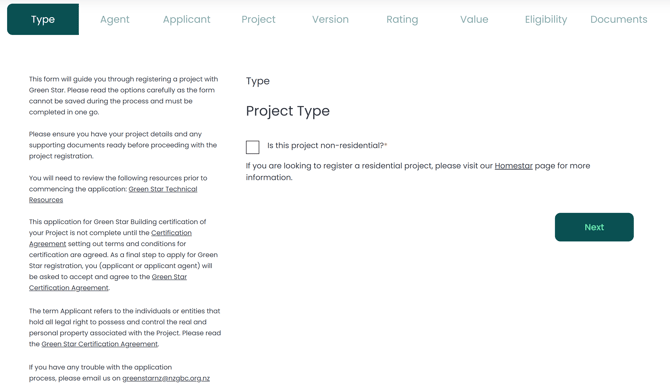
Step 1 - Type
Select the checkbox and click on 'Next' if you are looking to submit the EOI for a Green Star project.
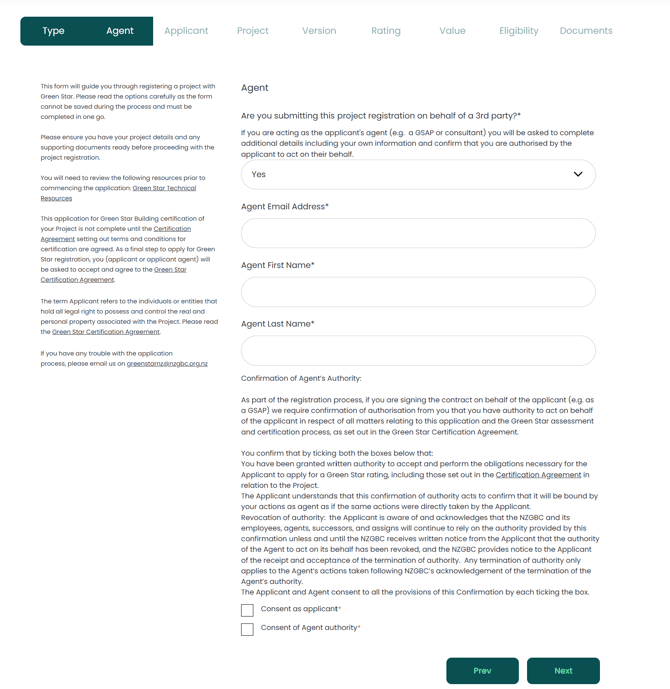
Step 2 - Agent
Are you submitting this project registration on behalf of a 3rd party? If you are acting as the applicant's agent (e.g. a GSAP or consultant) you will be asked to complete additional details including your own information and confirm that you are authorised by the applicant to act on their behalf.
Step 3 - Applicant
- Search for an applicant organisation in the "Lookup" field and select one if you can find it in our database.
This is the name of the legal entity that is applying for Green Star certification. If you are already affiliated with us in any way, you may already be in our database. Please feel free to lookup for your organisation now but note that we require the exact name of the applicant.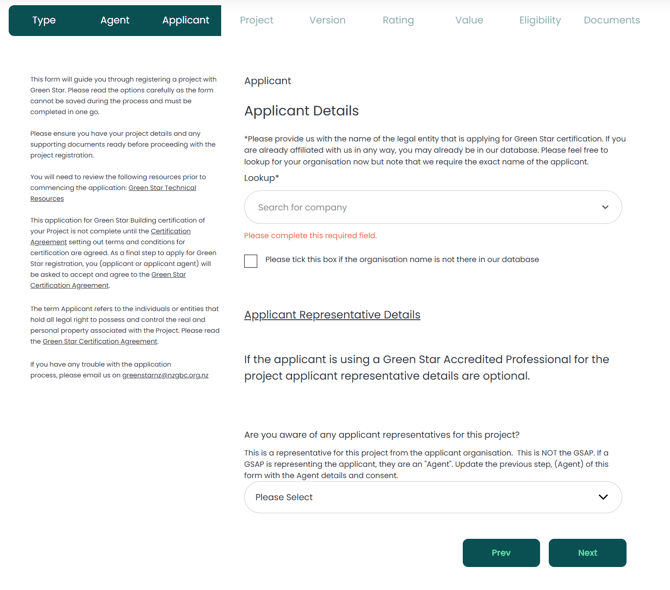
- If you don't find the organisation you are looking for, then you can create a new one by selecting the option " Please tick this box if the organisation is not there in our database".
The applicant organisation domain such as example.com, apple.com etc is mandatory.
Please DO NOT enter the page reference from the companies office government page (https://app.companiesoffice.govt.nz/companies/...)
If you do not have a website, please use this format - full name of your company.co.nz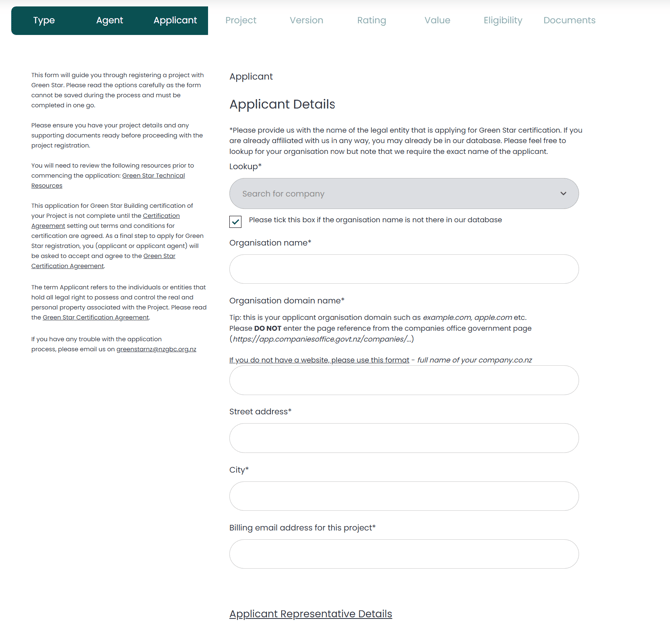
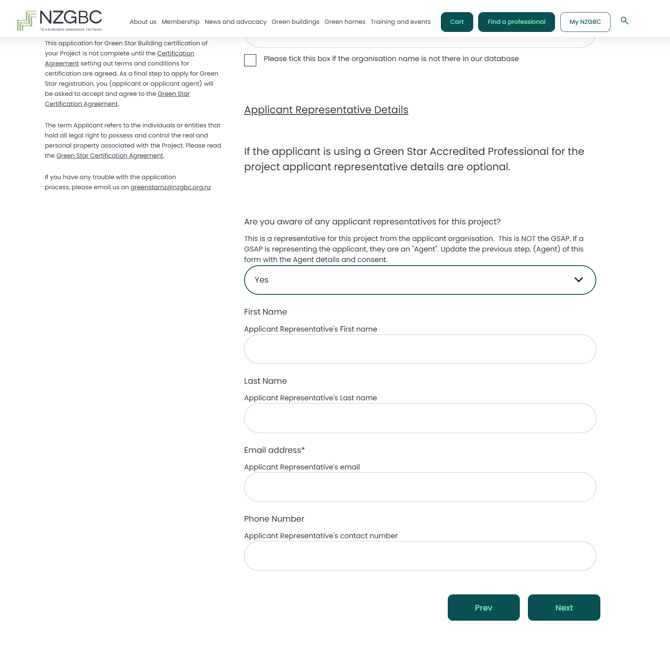
- Filling in the Applicant Representative details.
This is a representative for this project from the applicant organisation. This is NOT the GSAP. If a GSAP is representing the applicant, they are an "Agent". Update the previous step, (Agent) of this form with the Agent details and consent.
Email address is mandatory
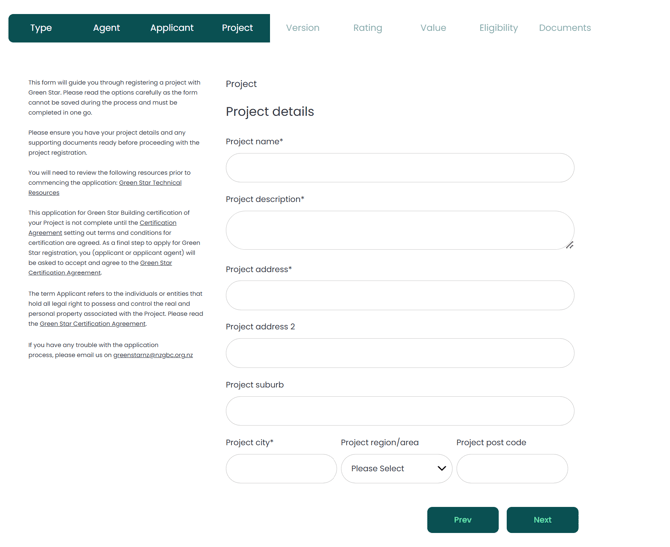
Step 4 - Project details
- The following fields are mandatory:
- Project Name
- Project Description
- Project address
- Project City
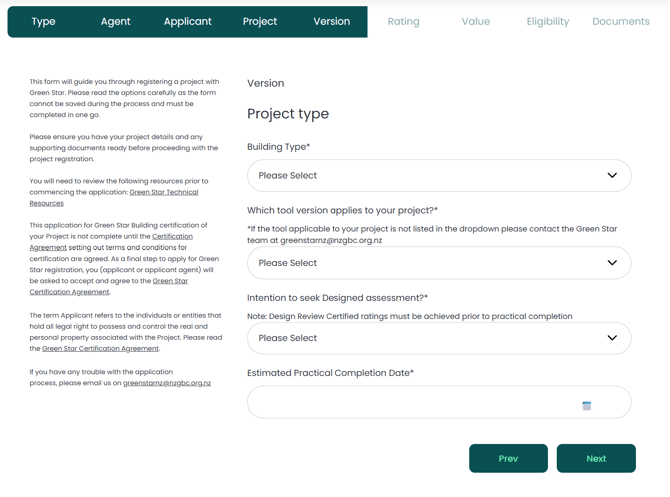
The following details are required.
The estimated practical completion date should be a future date.
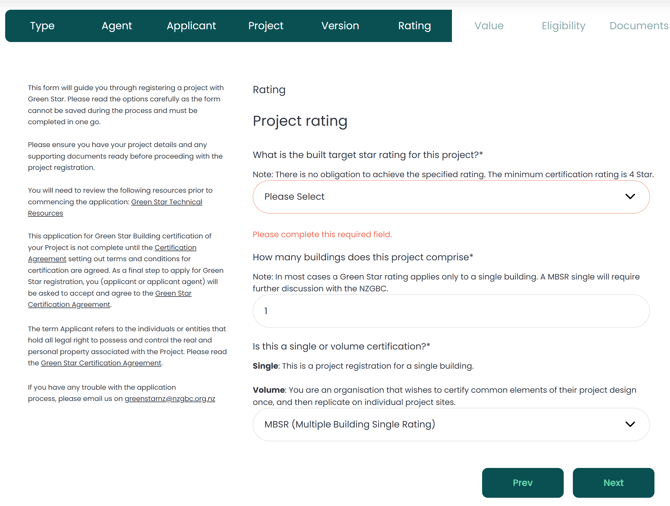
Step 6 - Rating
Step 7 - Value
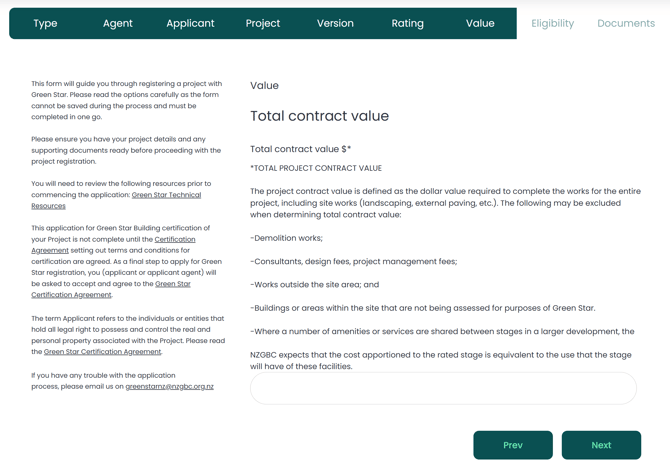
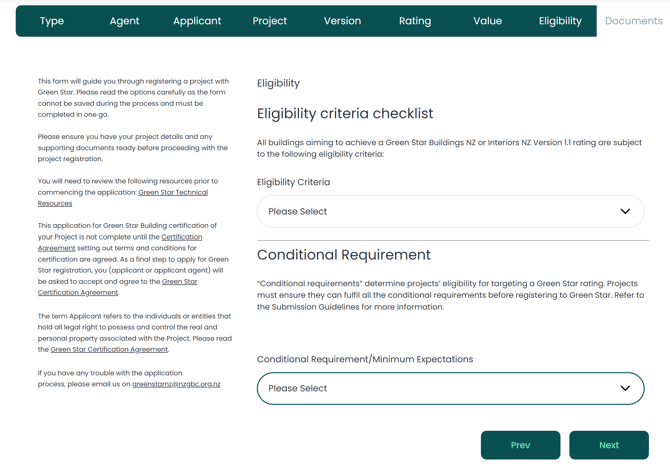
Step 8 - Eligibility
The Green Star Buildings Eligibility criteria can be referenced here - LINK
Step 9 - Documents
As a final step in applying for registration for the Green Star, you will need to accept the Green Star terms and conditions. These are set out in the Green Star Certification Agreement.
These standard terms and conditions govern the process to obtain a Green Star rating tool, and we recommend that you read the agreement carefully. If you have any questions about the terms and conditions, first please review the FAQs. If you have any further questions, please contact the Green Star team at greenstarnz@nzgbc.org.nz.
If you select No for certification agreement and enable the checkbox for "You selected "No". Do you want to submit without agreeing to our Standard terms and conditions?", you will be able to submit this application. However, you will not be able to progress to fee payment and fully register the project. You need to contact us at greenstarnz@nzgbc.org.nz if you have submitted the application without accepting the standard Terms and conditions.
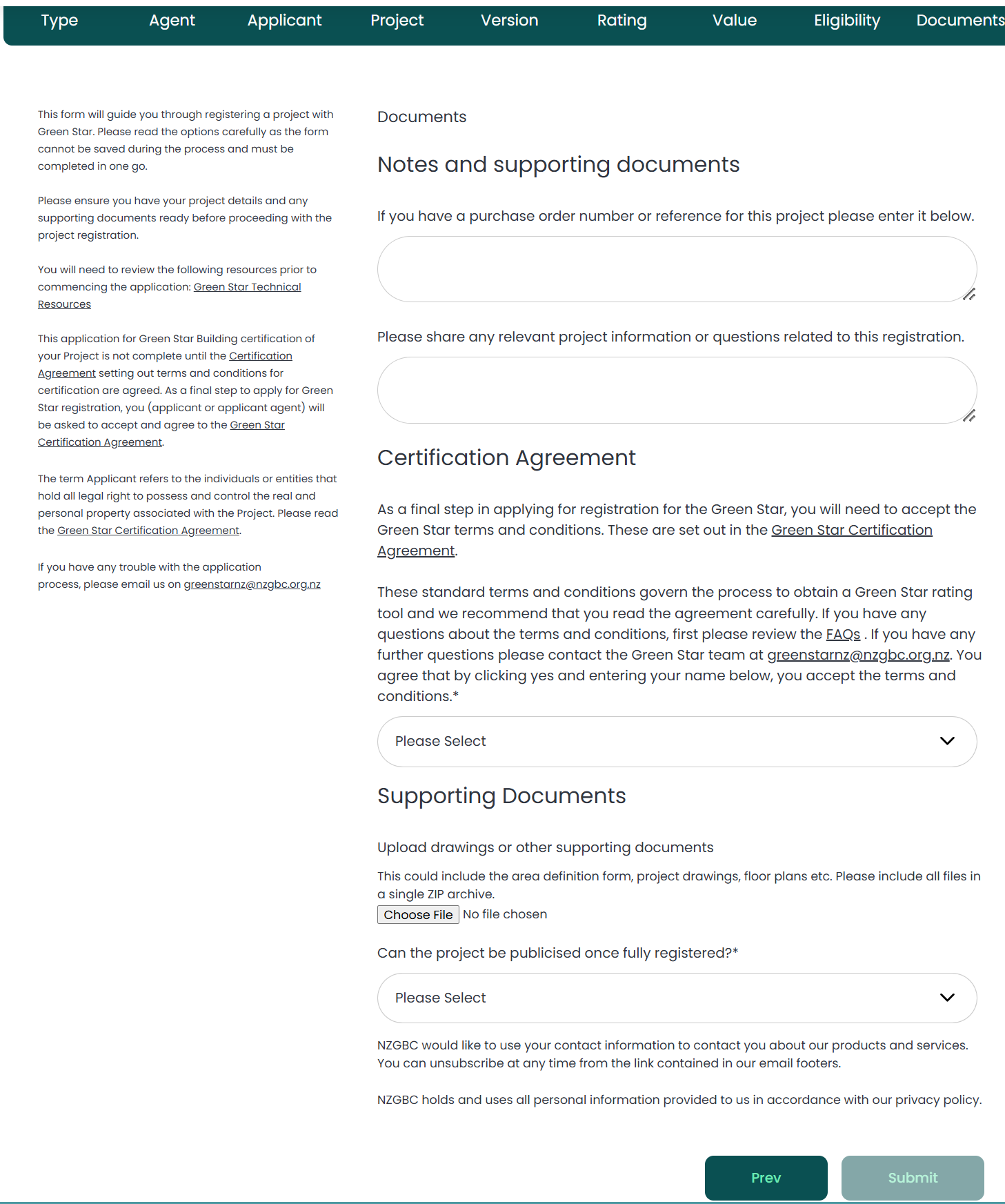
The Submit button will be enabled only when all the mandatory fields in the page are updated.
Note: While filling the 9 steps in the EOI form, you can navigate to the previous page or to the next page by clicking the "Prev" or "Next" buttons at the bottom right and the values you have selected will be displayed.
However, if you refresh the page, the session will end and all the field values you entered will be lost.